
Notice
Recent Posts
Recent Comments
Link
| 일 | 월 | 화 | 수 | 목 | 금 | 토 |
|---|---|---|---|---|---|---|
| 1 | 2 | 3 | 4 | 5 | 6 | |
| 7 | 8 | 9 | 10 | 11 | 12 | 13 |
| 14 | 15 | 16 | 17 | 18 | 19 | 20 |
| 21 | 22 | 23 | 24 | 25 | 26 | 27 |
| 28 | 29 | 30 |
Tags
- composition API
- mobile dev tools
- html 엔티티
- drective
- vitre
- dex모드
- async
- setup 함수
- watch
- promise
- vue
- 템플릿 문법
- tdz
- watchEffect
- reactivity
- 티스토리챌린지
- ref
- Component
- composition api
- eruda
- 앱 빌드
- es6
- let
- asynchronus
- const
- 오블완
- hoisting
- await
- synchronus
- computed
Archives
- Today
- Total
uxtry
cp*: 배너 슬라이드 본문
아래는 Vue에서 좌우 이동과 마우스 드래그가 가능한 배너 슬라이드 컴포넌트를 작성한 코드입니다. 각 슬라이드 이미지는 드래그 및 클릭으로 제어할 수 있으며, 코드에 있는 내용을 그대로 복사해 .vue 파일로 저장하면 작동합니다.
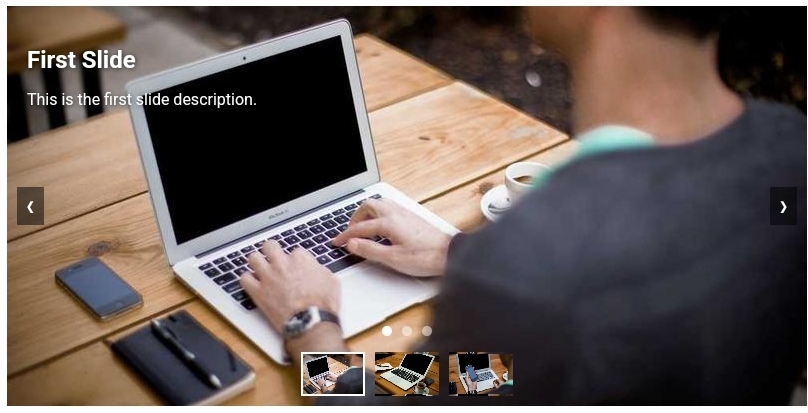
Slider.vue
<template>
  <div
    class="banner-slider"
    @mousedown="startDrag"
    @mousemove="onDrag"
    @mouseup="endDrag"
    @mouseleave="endDrag"
    @touchstart="startDrag"
    @touchmove="onDrag"
    @touchend="endDrag"
  >
    <!-- 슬라이드 이미지들 -->
    <div
      class="slides"
      :style="{ transform: `translateX(-${(currentIndex + 1) * 100}%)`, transitionDuration: isTransitioning ? '0.3s' : '0s' }"
      @transitionend="handleTransitionEnd"
    >
      <!-- 마지막 슬라이드를 맨 앞으로 복제 -->
      <div class="slide" :style="{ backgroundImage: `url(${slides[slides.length - 1].url})` }">
        <div class="slide-content">
          <h2>{{ slides[slides.length - 1].title }}</h2>
          <p>{{ slides[slides.length - 1].text }}</p>
        </div>
      </div>
      <!-- 원래 슬라이드들 -->
      <div
        v-for="(slide, index) in slides"
        :key="index"
        class="slide"
        :style="{ backgroundImage: `url(${slide.url})` }"
      >
        <div class="slide-content" @click="goToLink(slide.link)" >
          <h2>{{ slide.title }}</h2>
          <p>{{ slide.text }}</p>
        </div>
      </div>
      <!-- 첫 번째 슬라이드를 맨 뒤로 복제 -->
      <div class="slide" :style="{ backgroundImage: `url(${slides[0].url})` }">
        <div class="slide-content">
          <h2>{{ slides[0].title }}</h2>
          <p>{{ slides[0].text }}</p>
        </div>
      </div>
    </div>

    <!-- 좌우 이동 버튼 -->
    <button @click="prevSlide" class="prev-btn">
      <i class="fa fa-chevron-left" aria-hidden="true"></i>
    </button>
    <button @click="nextSlide" class="next-btn">
      <i class="fa fa-chevron-right" aria-hidden="true"></i>
    </button>

    <!-- 하단 인디케이터 -->
    <div class="indicators">
      <span
        v-for="(slide, index) in slides"
        :key="index"
        :class="{ active: index === currentIndex }"
        @click="goToSlide(index)"
      ></span>
    </div>

    <!-- 하단 썸네일 목록 -->
    <div class="thumbnails">
      <div
        v-for="(slide, index) in slides"
        :key="index"
        class="thumbnail"
        :class="{ active: index === currentIndex }"
        :style="{ backgroundImage: `url(${slide.url})` }"
        @click="goToSlide(index)"
      ></div>
    </div>
  </div>
</template>

<script>
import { ref, onMounted, onBeforeUnmount } from "vue";

export default {
  name: "Slider",
  props: {
    slides: {
      type: Array,
      required: true, // 부모 컴포넌트에서 슬라이드 데이터 전달
    },
  },
  setup(props) {
    const currentIndex = ref(0);
    const isDragging = ref(false);
    const startX = ref(0);
    const currentTranslate = ref(0);
    const prevTranslate = ref(0);
    const isTransitioning = ref(false);
    let intervalId = null;

    const prevSlide = () => {
      isTransitioning.value = true;
      currentIndex.value = currentIndex.value - 1;
    };

    const nextSlide = () => {
      isTransitioning.value = true;
      currentIndex.value = currentIndex.value + 1;
    };

    const goToSlide = (index) => {
      isTransitioning.value = true;
      currentIndex.value = index;
    };

    const goToLink = (link) => {
      if (link) {
        //window.location.href = link;  // 링크로 이동
        window.open(link);
      }
    };

    const startAutoSlide = () => {
      intervalId = setInterval(nextSlide, 3000);
    };

    const stopAutoSlide = () => {
      clearInterval(intervalId);
    };

    const handleTransitionEnd = () => {
      isTransitioning.value = false;
      if (currentIndex.value < 0) {
        currentIndex.value = props.slides.length - 1;
      } else if (currentIndex.value >= props.slides.length) {
        currentIndex.value = 0;
      }
    };

    const startDrag = (e) => {
      stopAutoSlide();
      isDragging.value = true;
      startX.value = e.type.includes("mouse") ? e.pageX : e.touches[0].clientX;
      prevTranslate.value = currentTranslate.value;
    };

    const onDrag = (e) => {
      if (!isDragging.value) return;
      const currentPosition = e.type.includes("mouse")
        ? e.pageX
        : e.touches[0].clientX;
      currentTranslate.value =
        prevTranslate.value + currentPosition - startX.value;
    };

    const endDrag = () => {
      if (!isDragging.value) return;
      isDragging.value = false;
      const movedBy = currentTranslate.value - prevTranslate.value;
      if (movedBy < -100) nextSlide();
      else if (movedBy > 100) prevSlide();
      currentTranslate.value = 0;
      prevTranslate.value = 0;
      startAutoSlide();
    };

    onMounted(() => {
      startAutoSlide();
    });

    onBeforeUnmount(() => {
      stopAutoSlide();
    });

    return {
      currentIndex,
      isTransitioning,
      prevSlide,
      nextSlide,
      goToSlide,
      goToLink,
      startDrag,
      onDrag,
      endDrag,
      handleTransitionEnd,
    };
  },
};
</script>

<style scoped>
.banner-slider {
  position: relative;
  width: 800px;
  height: 400px;
  overflow: hidden;
  margin: auto;
  cursor: grab;
}

.slides {
  display: flex;
  height: 100%;
  transition: transform 0.3s ease;
}

.slide {
  min-width: 100%;
  height: 100%;
  background-size: cover;
  background-position: center;
  position: relative;
}

.slide-content {
  position: absolute;
  top: 20px;
  left: 20px;
  color: white;
  text-shadow: 1px 1px 5px rgba(0, 0, 0, 0.7);
  z-index: 2;
}

.slide-content h2 {
  font-size: 24px;
  margin-bottom: 10px;
}

.slide-content p {
  font-size: 16px;
}

.prev-btn,
.next-btn {
  position: absolute;
  top: 50%;
  transform: translateY(-50%);
  background: rgba(0, 0, 0, 0.5);
  color: white;
  border: none;
  padding: 10px;
  cursor: pointer;
  z-index: 1;
}

.prev-btn {
  left: 10px;
}

.next-btn {
  right: 10px;
}

.indicators {
  position: absolute;
  bottom: 70px;
  left: 50%;
  transform: translateX(-50%);
  display: flex;
}

.indicators span {
  width: 10px;
  height: 10px;
  background: rgba(255, 255, 255, 0.5);
  margin: 0 5px;
  border-radius: 50%;
  cursor: pointer;
  transition: background 0.3s;
}

.indicators .active {
  background: white;
}

.thumbnails {
  display: flex;
  justify-content: center;
  position: absolute;
  bottom: 10px;
  left: 50%;
  transform: translateX(-50%);
}

.thumbnail {
  width: 60px;
  height: 40px;
  background-size: cover;
  background-position: center;
  margin: 0 5px;
  cursor: pointer;
  border: 2px solid transparent;
  transition: border 0.3s;
}

.thumbnail.active {
  border-color: white;
}
</style>
App.vue
<template>
  <div>
    <h1>Vue 3 Slider</h1>
    <Slider :slides="slides" />
  </div>
</template>

<script>
import Slider from "./Slider.vue";

export default {
  components: {
    Slider,
  },
  data() {
    return {
      slides: [
        {
          url: "https://picsum.photos/800/400/?image=1",
          title: "First Slide",
          text: "This is the first slide description.",
          link: 'https://www.example1.com',
        },
        {
          url: "https://picsum.photos/800/400/?image=2",
          title: "Second Slide",
          text: "This is the second slide description.",
          link: 'https://www.example2.com',
        },
        {
          url: "https://picsum.photos/800/400/?image=3",
          title: "Third Slide",
          text: "This is the third slide description.",
          link: 'https://www.example3.com',
        },
      ],
    };
  },
};
</script>

<style>
@import "https://cdnjs.cloudflare.com/ajax/libs/font-awesome/5.8.2/css/all.min.css"
</style>


<style>
@import "https://cdnjs.cloudflare.com/ajax/libs/font-awesome/5.8.2/css/all.min.css"
</style>
★ Vue SFC Playground 코드 실행 →
코드 설명
1. 슬라이드 데이터: slides 배열에 각 슬라이드 이미지의 URL을 저장합니다.
2. 좌우 버튼: prevSlide 와 nextSlide 함수를 통해 이전/다음 슬라이드로 이동할 수 있습니다.
3. 드래그 이벤트
- startDrag: 드래그 시작 시 호출, 드래그 시작 위치를 설정합니다.
- onDrag: 드래그 중일 때 위치를 계산하여 슬라이드를 이동합니다.
- endDrag: 드래그가 끝나면 이동 거리에 따라 다음 또는 이전 슬라이드로 이동합니다.
4. 자동 슬라이드:
- startAutoSlide 함수에서 setInterval을 사용하여 3초마다 nextSlide 함수를 호출해 자동으로 슬라이드가 넘어갑니다.
- stopAutoSlide는 드래그 또는 클릭 시 자동 슬라이드를 중단하고, 사용자가 슬라이드를 드래그로 제어한 뒤에는 다시 startAutoSlide로 재개됩니다.
5. 인디케이터:
- 하단 indicators div에 각 슬라이드에 해당하는 인디케이터가 표시됩니다.
- 현재 슬라이드 위치에 따라 active 클래스를 적용해 인디케이터의 스타일이 변경됩니다.
- 인디케이터를 클릭 시 해당 슬라이드로 이동합니다.
6. 썸네일 추가:
- thumbnails div에서 각 슬라이드에 해당하는 썸네일 이미지를 표시합니다.
- 썸네일 이미지가 현재 활성 슬라이드와 일치할 때 active 클래스가 추가되어 테두리가 강조됩니다.
- 썸네일을 클릭하면 해당 슬라이드로 이동하도록 goToSlide 메서드를 사용합니다.
7. 슬라이드 배열 구조:
- slides 배열의 각 항목은 이미지 URL을 포함한 객체 형태로 수정되었습니다. 이를 통해 향후 추가 정보나 속성을 슬라이드에 더 쉽게 추가할 수 있습니다.
8. 가상 슬라이드 추가:
- 원래 slides 배열의 첫 번째와 마지막 슬라이드를 각각 맨 뒤와 맨 앞으로 복제하여, 실제로 첫 번째 슬라이드와 마지막 슬라이드로 자연스럽게 넘어가도록 했습니다.
- handleTransitionEnd 함수: 슬라이드 이동이 끝난 후 가상 슬라이드에서 실제 슬라이드로 인덱스를 재설정해 무한 루프를 완성했습니다.
'★ Vue 컴포넌트 (cp*:)' 카테고리의 다른 글
| cp*: 알림창(alert) (0) | 2024.11.29 |
|---|---|
| cp*: 레이어팝업 (0) | 2024.10.31 |
'★ Vue 컴포넌트 (cp*:)' Related Articles
more

